
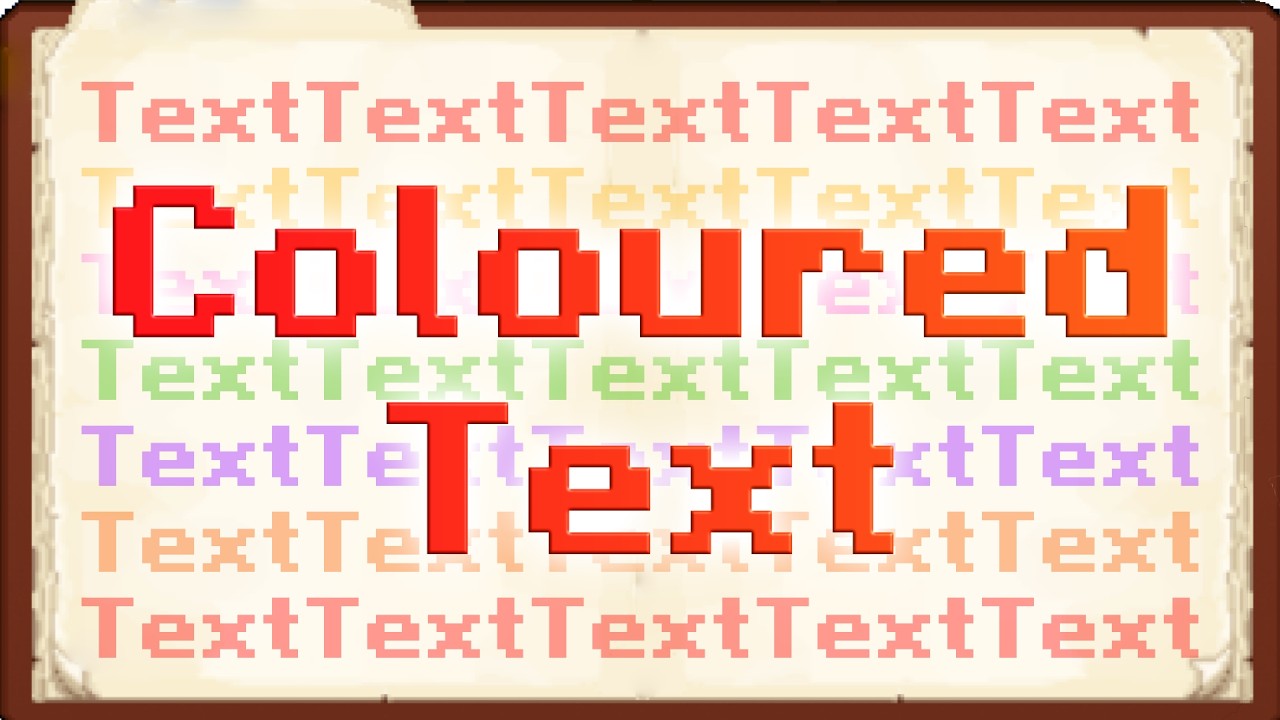


hey everybody it’s under my cap and welcome back to another video where today I’m going to be showing you how to get custom text formatting in Minecraft Java and Bedrock Edition. now this is such a awesome thing that you can add to your Minecraft world and it works on science books I think chat as well and all those sorts of things. you can see we’ve actually changed the color of the text. we’ve added boldness. you can see we’ve also added this glitch effects. we’ve used italics. so I’m going to be showing you how to use every single one of these in Minecraft Java and Bedrock Edition.without further Ado let’s get straight into this. now the first thing we’ll need to do is we’ll need to get a special character which is like a thing you put in your keyboard to actually get these color effects now this is called the section sign. unfortunately I can’t actually figure out how to actually get the icon on my keyboard so what I’ve done is I’ve actually searched up section sign on Google so you just search it up here and you can see that there’s some characters and I just want you to copy and paste that so I copy and paste that. because honestly I don’t know how you get on your keyboard iPad I know you can swipe up into your keyboard and get that sort of stuff but I can’t get that here.once you get that once you copy and paste that you then want to open up a book or a sign. I just tried testing it on a sign unfortunately signs reverted to Black text and I believe that is because you need to use Dy to change the color however if you’re using books it works completely fine so what I’m going to do is I’m going to open up a new page and I’m going to show you how to actually put the colored text in the book. so I showed you before we needed to copy the icon and to actually get that icon into Minecraft what we want to do is we want to hit control V if you are on Windows or command V if you are on Mac. once you do this you’ll notice nothing actually pops up and that is completely fine because now we actually have to select a color code or a letter to format the text. so I’m going to just put in a number three I don’t know what color that is. you’ll see nothing actually pops up again. that’s completely fine and then you just want to type in what you actually want to type so I’m going to say this is a book and you can see that the color of the book is actually or the color of the text is blue.now we can actually go all the way back to the very start and paste in the same icon again but this time we can add an L in front of it so control V and then L and you can see that we’ve actually made it bold. you can actually stack these on top of each other these certain things it’s a bit difficult so I’m going to put a text box in to show you what it kind of looks like if it was all visible because it hides it but you can see we put that there. then let’s say we paste in the icon again and put in a k all the text I type in will be this glitched effect which is quite cool.if we do the same now you can see I’ve put in another one. this text is like fluro I can’t tell if that is a green or a blue but you can see that we’ve got a lot of different colors. I’ll actually display all of the color codes that you can use right now on the screen so you can actually change your own book. but you can see that you can actually put in all your stuff.now if we place an anvil down we can actually also rename items with this color effect too. so if I go that and then put a d you can actually see it has added it in the Anvil. okay so you can see that we’ve actually put the icon in the Anvil and you can see that we put a letter here and that actually makes a different color thing. so if we hit click on it you can see that we’ve actually renamed it with a purple text which is super cool and you can do this with all of your color effects as well.that is about it for the video. if you did enjoy the video don’t forget to leave a like And subscribe and I can’t wait to see you in the next video. see you


