
Logitech MX Master 3S Mouse Review

- 🖱️ Overall experience: The reviewer says the MX Master 3S has been the best mouse they’ve used after a couple of months.
- 🔌 Charging and cable: It charges with a USB cable plugged into the front, so you can still use it while charging (unlike the Apple Magic Mouse).
- 📡 Bolt receiver: It includes a Logitech Bolt receiver for computers without Bluetooth, and it can connect multiple Logitech devices.
- 💻 Multi-device switching: You can connect up to 3 devices and switch between them using the button on the bottom.
- 🧭 Scroll wheels and buttons: It has a side scroll wheel for moving sideways (useful for video editing), extra buttons, a customizable gesture button, and a fast scroll mode you can turn on/off.
Logitech MX Master 3S Mouse Review: The Best Productivity Mouse I’ve Used
If you’re looking for a premium mouse for work, editing, or everyday productivity, the Logitech MX Master 3S is one of the most popular options around. After using it for a couple of months, it’s easy to see why. In this review, I’ll walk through what you get in the box, the standout features, how multi-device switching works, and the one downside you should know before buying.
What You Get in the Box
When you buy the Logitech MX Master 3S, you’re not just getting the mouse. It also includes a couple of important extras that make setup simple:
- Charging cable (designed mainly for charging)
- Logitech Bolt receiver (included in the box)
The charging port is located on the front of the mouse, which is a big plus. You can plug it in and keep using it while it charges. This is a much more practical design than some mice that force you to stop working while charging.
The included Bolt receiver is also a great bonus, especially if your computer doesn’t have reliable Bluetooth. Just plug it into your computer and connect easily. Even better, the receiver can connect up to three Logitech devices, which is ideal if you use a Logitech keyboard as well.
Multi-Device Switching (One of the Best Features)
A standout feature of the MX Master 3S is the ability to connect to up to three devices at once. On the bottom of the mouse, there’s a button and three slots that let you switch between connected devices.
For example, you can use it with:
- A Mac
- A Windows PC
- A third device like an iPad or even a phone
Switching is quick: press the button to jump from one device to another. If you work across multiple computers during the day, this feature alone can be a huge time-saver.
Side Scroll Wheel and Extra Buttons
The MX Master 3S includes a horizontal scroll wheel on the side. This won’t matter to everyone, but if you use apps where you move left and right often, it becomes extremely useful.
It’s especially handy for:
- Video editing (scrolling through timelines)
- Spreadsheets and large tables
- Wide documents or creative projects
You also get extra buttons on the side, plus a gesture button (easy to miss at first). The best part is that these can be customized, so you can set them up to match your workflow.
Smart Scroll Wheel Modes (Free Spin vs Normal)
The main scroll wheel has an interesting feature: if you scroll fast, it can switch into a free-spin mode and keep scrolling for a long time with very little effort. This is great when you’re moving through long webpages or documents.
If you prefer a normal scroll feel, you can press a button to change how it behaves. However, once you start scrolling quickly again, it can return to that faster “free spin” style automatically.
The One Issue to Know About
The biggest issue isn’t the mouse itself, but your setup. Yes, you can use the mouse while it charges because the port is on the front. But if you don’t have a nearby USB port where you work, you may not be able to comfortably plug it in and keep using it.
If you rely on this mouse daily, it’s smart to:
- Charge it before it gets too low
- Charge it during breaks or times you won’t be using your computer
Final Verdict: Is the Logitech MX Master 3S Worth It?
The Logitech MX Master 3S is an excellent productivity mouse with premium features that genuinely help if you work on a computer every day. Between the easy charging design, multi-device switching, useful side scroll wheel, and customizable buttons, it’s built for people who want a smoother workflow.
If you want a mouse that feels like a serious upgrade—especially for multitasking, video editing, or switching between devices—the MX Master 3S is a strong pick and easily one of the best options in its class.
## IntroductionHey everybody, it’s Josh from Cap Unpacked. Today, I’m going to be showing you the brand-new MX Master Series 3 mouse. This mouse has been awesome. I’ve been using it for a couple of months now, and I have to say it’s the best mouse I’ve used.## What’s IncludedWhen you get this mouse, it also comes with an awesome USB cable. It’s mainly a cable made just for charging. To charge it, you plug it into the front.A really awesome thing I like about charging from the front is that you can continue to use your mouse while it’s charging. If you have a monitor with a USB port, you can keep using your mouse—unlike the Apple Magic Mouse, where you have to plug it into the bottom for some reason.It also comes with the Bolt receiver. I think the Bolt receiver retails for $35 Australian, but it’s included. If your computer doesn’t support Bluetooth, you can plug this into the back of your computer. You can connect up to three Logitech devices at once, so you can connect the mouse to it, and you can also connect your keyboard, which I reviewed in the last video. If you want to check out the Logitech Mechanical Mini, just check the description below or the info card.## Connecting Multiple DevicesOne of the most awesome features I’ve found with this mouse is that you can connect up to three devices. At the very bottom (I’m covering up the serial number), there are three computer slots.If I press this button, you can see I’m currently connected to my Mac. If I want to switch to my Windows computer, all I have to do is click the button again, and you can see I’m on Windows. I don’t have a third computer, but if I did, I could connect it to something like an iPad (if I had one) or even my phone if I really wanted to.That’s one of the best features I’ve found with this mouse.## Side Scroll Wheel and ButtonsAnother great feature is the horizontal scrolling wheel on the side. If you don’t use programs that require swiping across, moving sideways, or dragging the scrollbar at the bottom, it probably won’t be useful to you. But if you do use those programs, this is awesome.For example, with video editing, I can slide through my timeline using the side scroll. I’ve got an example on the screen of how it works. It’s super useful.You also have two buttons here, and another button I didn’t know about until the other day: the gesture button. You can customize this to whatever you like.## Scroll Wheel ModesAnother interesting feature is the scroll wheel behavior. When you scroll a lot, it just keeps going—it doesn’t stop. I don’t know if you can see it on camera, but it keeps scrolling. I can stop it, but it has this weird scrolling feature.You can disable it by clicking this button here, so now it scrolls like a normal wheel. But once you start scrolling quickly, it does that “free spin” thing again.## One Issue I’ve HadThe only issue I’ve had with this mouse is that when you charge it, you kind of can’t use it—depending on your setup. I said before that you can plug the cable into the front and use it, but if you don’t have a computer or any USB ports to plug it in near where you’re using it, you basically can’t use your mouse. Then you’re stuck without a mouse to use your computer.If you use your mouse a lot, make sure you charge it when you know it’s almost about to die, and when you know you’ll have time where you’re not going to be using your computer.## ClosingThis mouse is absolutely awesome. I’ve loved using it, and it’s so much better than my last mouse.If you do want to purchase this mouse, I’ve left a link in the description. It might be an affiliate link—it might not, because I’m applying for that—but if you click on that link, it will support the channel if it is affiliated.If you enjoyed the video, don’t forget to leave a like and subscribe to the channel. I can’t wait to see you in the next video. See you.
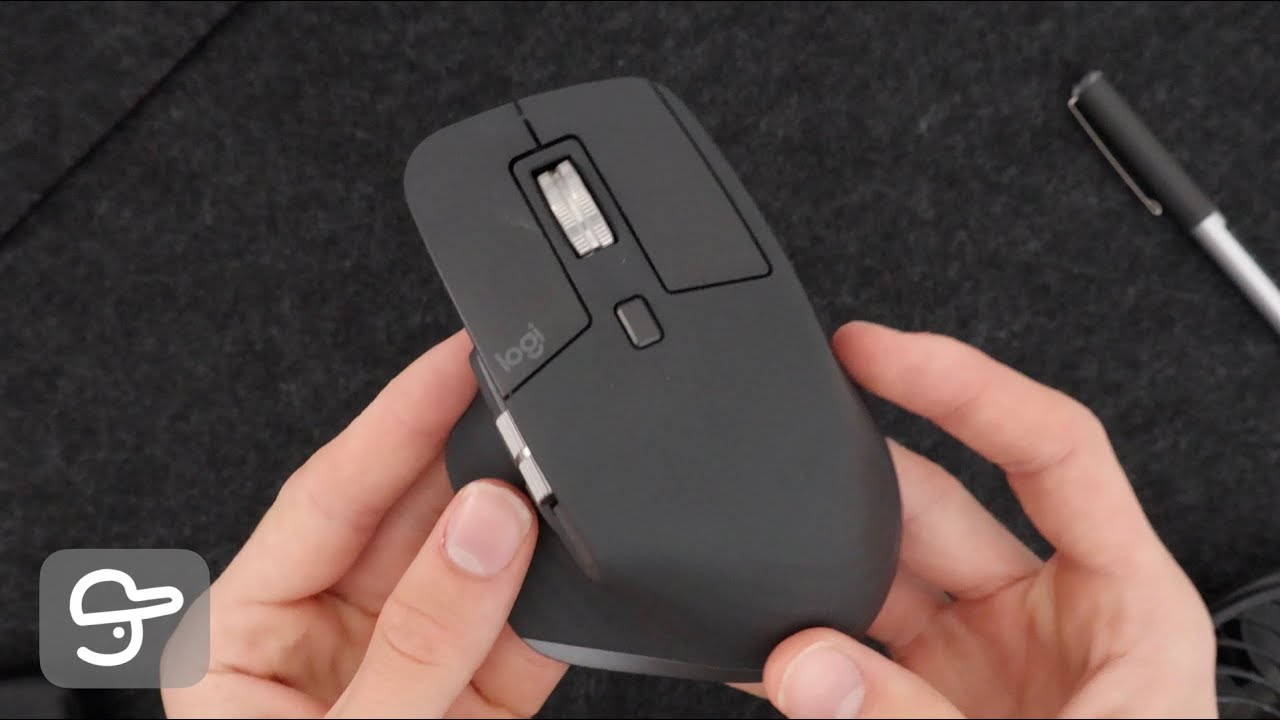
Video Thumbnail
This post has been automatically generated using services to reformat and enhance content based on the video’s transcripts. Some information may be incorrect and may not reflect undermycap’s values or views.


