
Logitech MX Mechanical Mini Review

- 🔁 Connects to 3 devices: You can switch between up to three computers using the top FN device keys.
- 📡 Bluetooth or Logitech Bolt: Use Bluetooth if your computer supports it, or plug in the included Bolt receiver (also works with other compatible Logitech devices).
- ⌨️ Extra function buttons: Includes keys for emoji, dictation, screenshot, mute, and media/volume controls (some features may need the Logi Options app).
- 🔋 Battery and build: Plastic + aluminum design, adjustable feet, and strong battery life (up to 10 months without backlight, about 15 days with full backlight).
- ⚠️ Issues and overall feel: Had an F-key problem and backlight issues at first (fixed with replacement and canned air), but overall it’s thin, responsive, and great for work and gaming.
Logitech MX Mechanical Mini Review: A Thin Mechanical Keyboard Built for Work and Gaming
If you want a mechanical keyboard that feels great for typing but doesn’t take up much desk space, the Logitech MX Mechanical Mini is worth a serious look. After using it for around three months for both work and gaming, it stands out for its slim design, strong battery life, and one of the most useful features today: multi-device switching.
Quick Overview: What Is the Logitech MX Mechanical Mini?
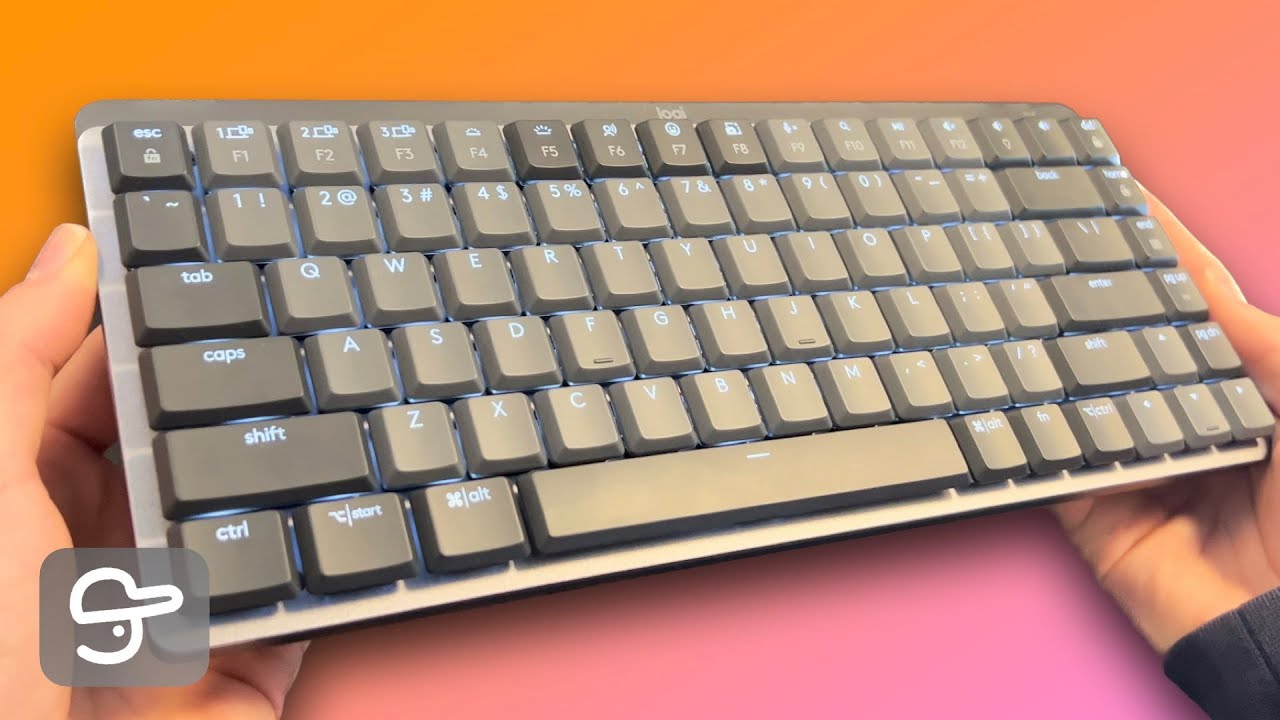
The Logitech MX Mechanical Mini is a compact mechanical keyboard designed to be thin, portable, and easy to use across multiple devices. It’s aimed at people who want the feel of mechanical switches without the bulk that usually comes with mechanical keyboards.
Multi-Device Connectivity: Switch Between 3 Devices Fast
One of the best features of the Logitech MX Mechanical Mini is how easy it is to use with multiple devices. At the top of the keyboard, there are three function keys with computer icons. These let you pair the keyboard with up to three devices and switch between them quickly.
For example, you can connect a Mac to one key and a Windows PC to another, then swap with a single press. This is especially useful if you work across different systems during the day.
Bluetooth and Logitech Bolt Receiver Support
Logitech gives you two ways to connect:
- Bluetooth for devices that support it
- Logitech Bolt receiver for devices that don’t have Bluetooth (or if you prefer a receiver connection)
The Bolt receiver is included with the keyboard, which is a nice bonus since it can cost extra on its own. Another big benefit is that the Bolt receiver can work with other compatible Logitech accessories too, meaning you can connect both a keyboard and mouse to the same receiver and save USB ports.
Function Keys and Media Controls
Along the top row, the MX Mechanical Mini includes extra shortcut keys that can be handy depending on how you work:
- Emoji key (useful for messaging, though not everyone will need a dedicated button for this)
- Dictation key for voice-to-text
- Screenshot key
- Mute key
- Media controls including play/pause and volume
Keep in mind that some of these features may require Logitech’s software (Logi Options) to work properly.
Build Quality and Design: Slim for a Mechanical Keyboard
The build is a mix of aluminum and plastic. Around the keys, there’s an aluminum base that gives it a more premium feel, while the back of the keyboard is solid plastic.
It also includes adjustable feet so you can choose a slight angle or keep it flat on your desk. The biggest design win is how thin it is for a mechanical keyboard, which makes it easier to fit into a clean setup and more comfortable if you don’t like tall keyboards.
Battery Life: Excellent for Everyday Use
Battery life is one of the standout points in this Logitech MX Mechanical Mini review. With backlighting enabled, it held up very well over months of use. Without backlighting, Logitech estimates it can last up to 10 months. With full backlighting, it’s rated for around 15 days.
In real use, charging only once over a few months (even with lighting involved) is a strong result for a wireless mechanical keyboard.
Typing Feel and Switch Options
The keyboard offers the feel you’d expect from a mechanical board, and the typing experience is responsive and satisfying for both work and gaming.
When buying, you can choose different switch types depending on what you like. The reviewed unit came with brown switches, and there are other options like blue switches available too. Since each switch type sounds and feels different, it’s a good idea to pick based on whether you prefer quieter typing or a louder click.
Problems and Negatives Experienced
No keyboard is perfect, and there were a few issues early on:
- A non-responsive key (the F key) on the original unit, which required a full replacement
- Backlighting issues on the replacement unit at first
The good news is that the key issue was handled through a replacement, and the lighting issue was resolved by cleaning with canned air. After that, the keyboard worked well and felt reliable.
Final Verdict: Is the Logitech MX Mechanical Mini Worth It?
If you want a thin mechanical keyboard that works well across multiple devices, the Logitech MX Mechanical Mini is a strong option. The ability to switch between up to three devices, the included Bolt receiver, and the long battery life make it especially appealing for people who use both a Mac and Windows PC or who move between a work machine and a personal setup.
While there were a couple of early issues, once resolved, the overall experience became smooth, responsive, and enjoyable. If you like mechanical keys but don’t want a bulky keyboard, this one fits the gap nicely.
Hey everybody, it’s Josh from Cap Impact, and welcome back to another video. Today, I’m going to be showing you the brand-new Logitech mechanical keyboard. This is an awesome keyboard—I’ve had it for about three months now, and it has been great for gaming and work. Without further ado, let’s get straight into the video. ## Multi-Device Connectivity The first thing to talk about with this keyboard is that you can use it with multiple devices, which is an awesome feature. At the very top, we have three FN keys with computer icons, meaning you can connect three computers to your keyboard. For my current setup, I have my Mac connected to the F1 key and my Windows computer connected to the F2 key. The interesting thing about Logitech is that they offer two different options to connect to your computer. If your computer supports Bluetooth, you can connect through Bluetooth, which is what I’m doing with my Mac. If you have a computer that doesn’t support Bluetooth, you can connect to it with a Logitech Bolt receiver. As you can see, I’ve got a Logitech Bolt receiver. This is what you plug into your computer if you want to connect your keyboard to a device that doesn’t accept Bluetooth. The awesome thing is that this comes with the keyboard. I think these retail for 35 Australian dollars, but they do come included with your keyboard. The cool thing is that the Logitech Bolt receiver will also work with any other compatible Logitech devices. I can connect my keyboard and my mouse to the same receiver, which is super useful and uses fewer USB ports on your computer. ## Function Keys and Media Controls Going back to the keyboard, we’ve covered those three device keys, which is super awesome. At the very top, there are a few more function keys as well. They’ve included an emoji button, which I’m not too sure about. I don’t use emojis that much, but they’ve dedicated a whole button to it. If you did want to message a friend with emojis, you can simply click that. They also have a dictation button; if you press that, you should be able to dictate text. There’s also a screenshot button and a mute button. Unfortunately, you might need to download the Logi Options app to use these features, as they require software to function. Moving across, we also have play/pause and volume controls. ## Build Quality and Design Moving on from the keys, the keyboard is made out of a plastic-and-aluminum mix. You can see there’s an aluminum base around the keys, and then on the back it’s a solid plastic body. It also has switches you can use if you want to stand it at an angle, or if you want it to sit flush on a surface. ## Battery Life The battery life is actually really awesome. I’ve had it for about three months now, and I’ve only had to charge it once. That was because I’ve been using backlighting, and when I received it, it was at 55%. This can last up to 10 months if you choose not to use backlighting, and it can also last 15 days if you use full backlighting. ## Sound Test and Switch Options Now, a quick sound test: I’m going to bring this up to my microphone. You probably won’t be able to hear it that well, but I’m going to do a little bit of typing so you can hear how the keys sound. I’m only doing this with one hand, so it might be a bit interesting, but we’ll try it. Okay, so that’s that. Also, if you order it through the Logitech website, you can change the keys. Currently, the keys that come with the keyboard are the “brown” keycaps. You can also get blues, and I think a different type as well. They all sound different depending on what you prefer. ## Negatives and Issues I Experienced Now let’s go on to the negatives. Unfortunately, I have had a few small experiences with this keyboard which led me to not enjoy it that much at first. However, after fixing them, it has been super good. When I first bought my keyboard, unfortunately the F key on my original one was non-responsive, so I had to get it replaced. I took it back to the shop and they replaced the whole keyboard, which was great. On the second one, the backlighting didn’t work that well. ## Update (From Editing) Hey, it’s me while editing the video, and I have actually fixed the issue. I had to blow a little bit of canned air into the keys. It’s just been weird—you can see again they light up now. Apart from that, it’s been super good and super responsive. ## Final Thoughts and Outro I would definitely buy it from Logitech again. It’s super convenient having a really thin mechanical keyboard—this is really thin for a mechanical keyboard. It’s just really convenient, and it’s also nice because it’s mechanical. I’ve always loved mechanical keys, and I don’t quite like flat keys, so it’s a really good keyboard. If you do want to support the channel, I’ve left a link in the description, which is an affiliate link to Amazon if you want to purchase the keyboard. If you did enjoy the video, don’t forget to leave a like and subscribe, and I can’t wait to see you in the next video. See ya.
Video Thumbnail
This post has been automatically generated using services to reformat and enhance content based on the video’s transcripts. Some information may be incorrect and may not reflect undermycap’s values or views.


